
✔️ Describe the Error
Include the exact error message and when it appeared.
RS9 / ACCOUNT ACCESS
See how to use the sign-in screen and what to check when you cannot continue.

01 / START WITH YOUR ACCOUNT
Open the installed app or a platform address you have verified. Follow the sign-in options shown there.
Choose the login option in RS9. Use your existing account’s login method if you have signed in before.
The supplied screen accepts either. For mobile numbers, it says to omit the country code. Follow the instructions on your current screen.
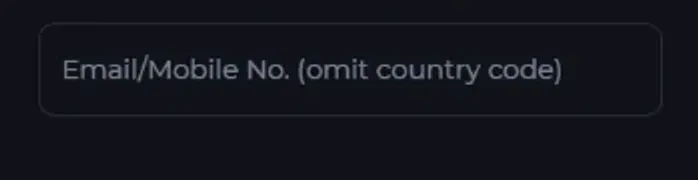
Complete the next verification step shown by the app. The supplied screenshot does not confirm whether that next step uses a password or a code.

02 / GET PAST THE BLOCKER
Choose the issue that matches your screen.
The app itself won’t install? Read installation help →
03 / FIND THE RIGHT HELP
Look for Help or Customer Center on the platform’s verified website or sign-in screen. Prepare the following details before contacting support.
Include the exact error message and when it appeared.
List your app version, phone model and Android version.
Mention the checks you have already completed.
Hide personal information before sharing it.
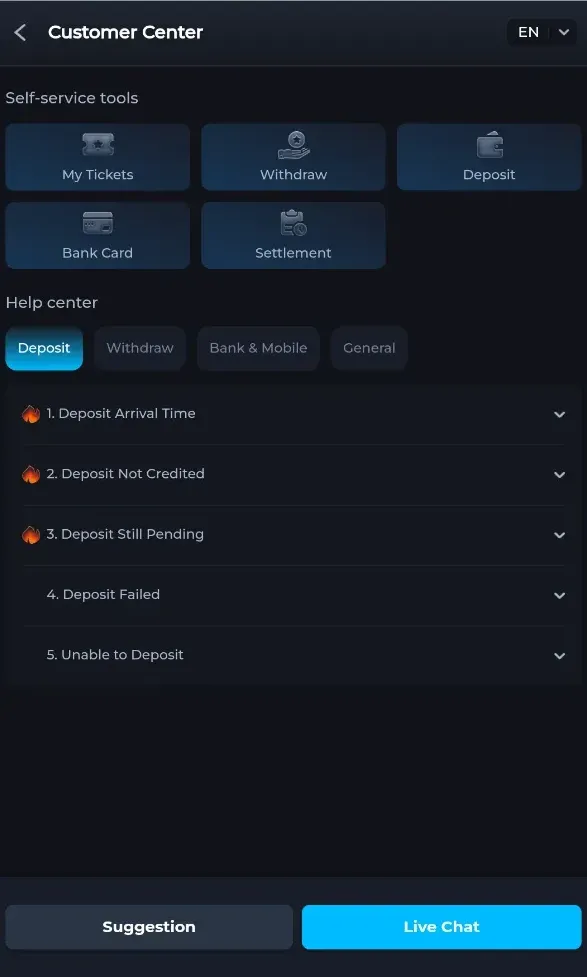
Install the app, or browse more troubleshooting answers.